
Takeover 2 Steam Deck: Performance, Controls and Settings
Takeover 2 is Windows-only, so Steam Deck play means Proton. Here is what to expect, how to set up controls and which settings to change first.
Takeover 2 is a Windows-only game, so Steam Deck play runs through Proton. The game is light enough that the Deck should handle it comfortably, but the small HUD and the parry timing are the real adjustments. Source: Takeover 2 on Steam ↗
Takeover 2's store page lists Windows as the only platform. That does not mean it cannot run on a Steam Deck; it means it runs through Proton, Valve's compatibility layer. Most modern Windows games work, and a 2.5D beat 'em up with modest requirements is a good candidate.
The questions worth answering are not "will it boot" but "does it feel right". A game built around parry timing and a dense HUD has specific handheld problems: input latency, text size and the difference between a controller and a handheld.
Compatibility status
Pelikan13 has not announced a Steam Deck Verified rating. At launch, treat the game as playable but unverified: it should run, but you may need to adjust Proton or controls.
The store lists full controller support, which is the most important compatibility signal. A game with native gamepad support is much easier to run on Deck than a keyboard-and-mouse game.
If the game does not launch:
- Open the game's properties in Steam.
- Go to Compatibility.
- Force Proton Experimental (or the latest stable Proton).
- Launch again.
- If it still fails, verify the game files and check the Steam community for a ProtonDB report.
Performance expectations
Takeover 2's minimum requirements are a Ryzen 3 3200G or i5-8400, 8 GB of RAM and a GTX 1050 or GTX 950. The Steam Deck's APU sits in the same class as those components, and the game's art style is not built on ray tracing or heavy post-processing.
That suggests a comfortable experience at the Deck's native 1280x800. A few practical settings:
- Resolution: native 1280x800. Do not supersample; the UI is already small.
- Frame rate: cap at 60 fps if the game holds it. A stable 60 is better for parry timing than a variable 90.
- TDP: start at the default. If the fan is loud, cap the TDP to 10-12 W and accept a lower frame rate.
- FSR: only if the game offers it and the image is too soft at native. A 2D-heavy game usually looks better without upscaling.
There is no official Deck performance figure, so treat these as starting points, not benchmarks.
Controls on Deck
The Deck's built-in controller is an Xbox-style layout, and Takeover 2 supports Xbox controllers. The game should detect it without Steam Input.
Two Deck-specific adjustments are worth making:
- Map parry to a back button. The Deck has four back buttons, and parry is the one action you want without moving your thumb. A back paddle is the closest thing to a dedicated parry button.
- Keep run on a held trigger. Running is a modifier, and the Deck's triggers have enough travel for it.
If the game does not see the Deck's controls, disable Steam Input for the game and relaunch. If it sees two controllers, the built-in pad and a virtual one are both active; disabling Steam Input fixes that too.
The HUD problem
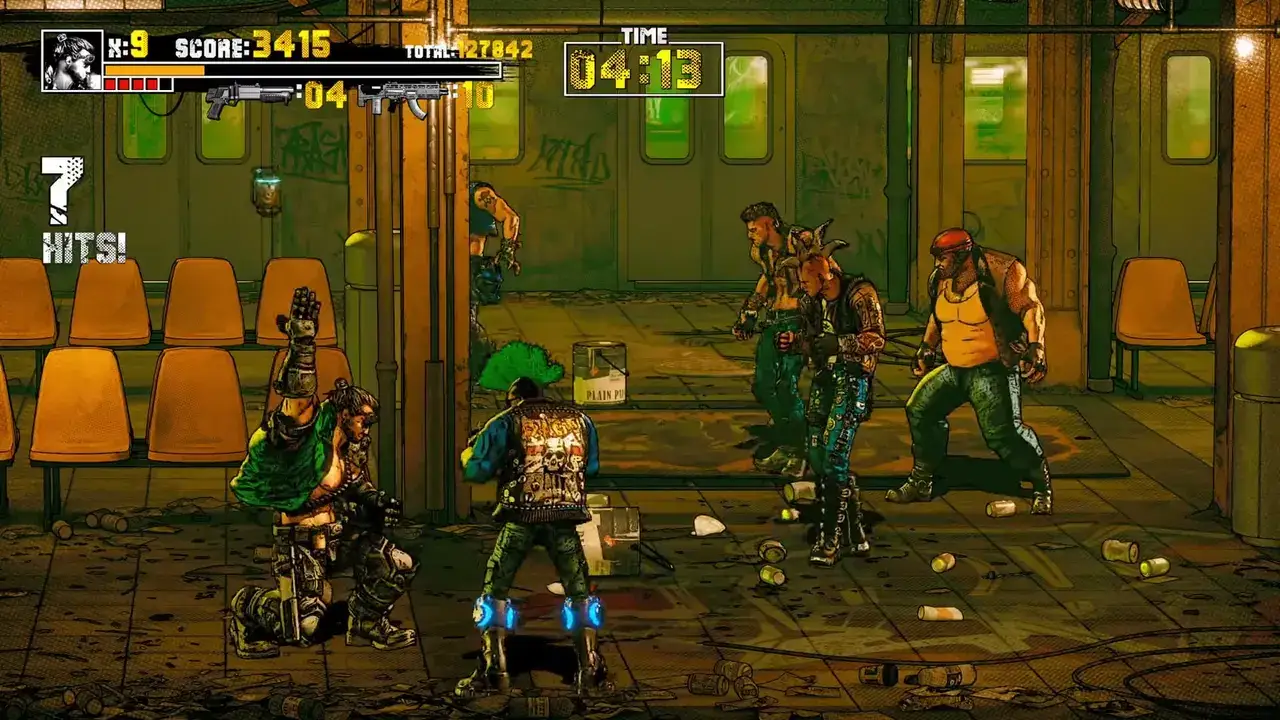
The HUD is the biggest handheld compromise. Takeover 2's screen is full of small text: combo counters, hit counts, score, timers and boss health bars. On a 7-inch screen, that text is readable but not comfortable.
What helps:
- Play in handheld mode, not docked, if you are learning. The screen is closer.
- Use the zoomed camera if the game offers one. A wider camera makes the characters smaller.
- Focus on the parry flash, not the combo text. The flash is large and colour-coded; the text is secondary.
- Take breaks. Reading a dense HUD for an hour is tiring.
If you are playing docked on a TV, the HUD is fine. The problem is specific to handheld play.
Battery and storage
The game requires 10 GB of storage. That is a modest install for a modern game, and it leaves plenty of room on a 256 GB Deck.
Battery life depends on the frame rate and the TDP. A 2D beat 'em up at 60 fps is not a battery monster, but the Deck's screen and speakers are. Expect a normal Deck session, not an all-day one. If you are on a long trip, cap the frame rate to 40 or 45 fps and lower the brightness.
Remote Play and co-op on Deck
The Deck can host or join a Remote Play Together session. Hosting from the Deck works, but the guest is streaming the Deck's screen, which is already small. If you want to play co-op with a friend, host from a desktop and use the Deck as the second screen, or play local co-op with a second controller.
Local co-op on a single Deck is possible with a second controller, but the split-screen layout on a 7-inch screen is cramped. It is a novelty, not the best way to play.
Is the Deck the right way to play Takeover 2?
For most players, the Deck is a good secondary way to play. The game is short, the stages are replayable, and the pick-up-and-play structure suits handheld sessions.
For a first completion, a desktop or a TV is better. The HUD is clearer, the controller latency is lower, and the parry timing is easier to learn. Use the Deck for score attack runs and bonus games after you know the game.
The system requirements page→ has the full Windows baseline.
FAQ
Is Takeover 2 Steam Deck Verified?
Pelikan13 has not announced a Verified rating. The game is Windows-only and runs through Proton.
Does Takeover 2 run on Steam Deck?
It should, through Proton. The game has full controller support and modest requirements. Check ProtonDB for the current report.
What Proton version should I use?
Start with Proton Experimental. If that fails, try the latest stable Proton and verify the game files.
Can you play co-op on Steam Deck?
Yes, with a second controller for local co-op, or through Remote Play Together. The split-screen layout is cramped on the handheld screen.
Sources
Official source: Takeover 2 on Steam ↗ Takeover 2 guides and walkthroughs