
Takeover 2 Controls: Controller, Keyboard and Remapping
The Takeover 2 control scheme explained: punch, kick, parry, run and special, plus controller support, keyboard play, remapping and Steam Input fixes.
Takeover 2 supports full controllers, PlayStation and Xbox pads, keyboard-only play and input remapping. The parry is the kick-side action and the counter is on punch, so bind those two where your thumb can tap them independently. Source: Takeover 2 on Steam ↗
Control guides for small games are usually a list of default keys. Takeover 2 makes that list less useful than usual because the demo added input customization, the parry counter was remapped during development, and the final build supports full remapping. The useful question is not "what are the defaults" but "which actions need to be fast, and where should they live".
This page covers the action set, the confirmed changes, and a setup that works for most players.
The action set
Takeover 2's combat uses a small set of verbs:
- Punch. The main light attack, the parry counter and one half of the special input.
- Kick. The heavier attack and, according to the patch notes, the parry action itself ("kick parry").
- Jump. Used for positioning and aerial attacks.
- Parry. The defensive read. Short active window, no invincibility on a whiff.
- Special / Super. A meter-driven attack for crowd clearing or boss damage.
- Run. A held movement modifier. The demo community describes holding the left trigger to run; the May 31 patch added six-way running.
- Pick up / throw. Contextual interaction with the environment.
- Finisher. A context attack on a downed or staggered enemy, including gun finishers.
The exact default mapping is not published on the store page, and it can change with patches. If you are reading this on launch week, check the in-game control settings rather than trusting a screenshot from the demo.
What the patches changed
Two patch notes matter for controls:
- The parry counter was mapped to the punch button. Before that change, the counter was a separate action. Now a successful parry flows into the counter with the same button you use to attack.
- The kick parry lost its i-frames. The parry is still a kick-side action, but a missed parry no longer gives you a free escape. This makes the parry button a commitment, not a panic button.
The demo also added input customization and rumble. If your build predates those patches, the current control feel is not representative.
A controller setup that works
You want three things from a layout:
- Punch and kick on separate face buttons. Alternating them is the base of every chain.
- Parry on a button you can tap without moving your thumb. If parry shares a button with a movement action, you will mistime it.
- Run on a held shoulder or trigger. Running is a modifier, not a tap.
A common layout is:
| Action | Suggested placement | Why |
|---|---|---|
| Punch | Face button south | Main attack and counter |
| Kick | Face button west | Heavy attack and parry |
| Jump | Face button east | Positioning |
| Parry | Face button west, or a shoulder if remappable | Needs an independent tap |
| Special | Punch + kick, or a dedicated shoulder | Meter spend |
| Run | Left trigger or left bumper | Held modifier |
| Pick up / throw | Context button | Used between fights |
If parry and kick are the same button, that is fine as long as the game treats the input contextually. If you can separate them, do it: the parry is the one action you never want to trigger by accident.
Keyboard play
The store lists "Keyboard Only Option", so the game is playable without a pad. The defaults are not documented, and the keyboard layout is the first thing you should change if it feels cramped. A workable setup is:
- Movement: WASD.
- Punch: J.
- Kick / parry: K.
- Jump: L.
- Run: Left Shift, held.
- Special: U or J+K.
- Pick up / throw: E.
That is a suggestion, not an official layout. The important part is that punch and kick sit under two adjacent fingers and that run is on a key you can hold without leaving the movement cluster.
Keyboard play is viable for the campaign, but the parry timing is harder without analogue movement. If you are chasing S ranks or Hardcore clears, a controller is the more comfortable tool.
Steam Input and controller detection
Takeover 2 supports Xbox and PlayStation controllers. Most detection problems come from Steam Input layering a virtual controller on top of the native one.
If the game does not see your pad:
- Open Steam's controller settings for Takeover 2.
- Try disabling Steam Input for this game, then relaunch.
- If that breaks the layout, re-enable it and choose the official Xbox or DualSense template rather than a generic one.
- Unplug other controllers and flight sticks. Multiple HID devices can confuse the first-launch detection.
If the buttons are correct but the game feels laggy, check whether you are playing on a TV with a different refresh rate, or through Remote Play. Bluetooth controllers add latency; a wired connection is better for parry timing.
Co-op controller setup
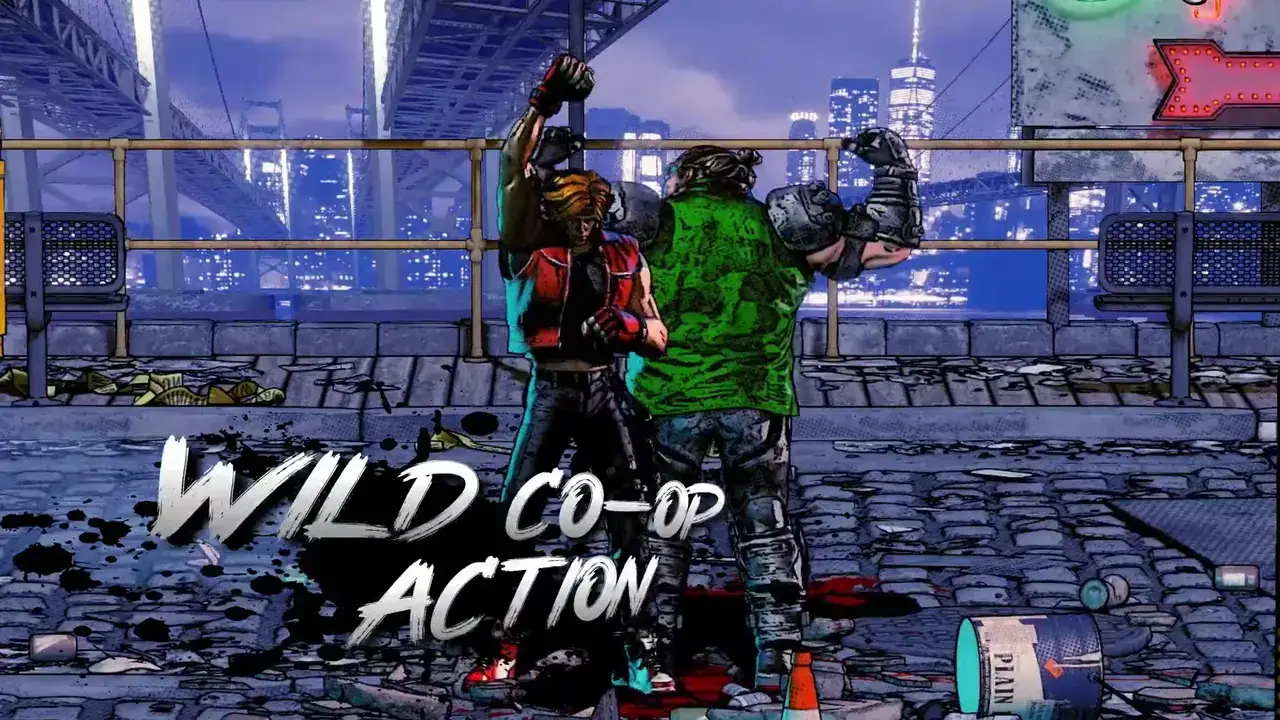
Local co-op needs two input devices. The game supports shared/split-screen co-op and Remote Play Together, so the second player can use a second controller, a keyboard, or a remote stream.
Assign the second controller before you start Arcade Mode. If player two joins mid-stage, the game may default to a keyboard layout that is not what they expect. Test both pads in the options menu, then launch.
For Remote Play Together, the host's controller is local and the guest's inputs travel over the network. Expect a few frames of extra latency; parry earlier than you would in local play, and let the host take the boss-parry role if the connection is unstable.
Accessibility and comfort
The store lists adjustable difficulty, custom volume controls, full controller support, keyboard-only play and no quick-time events. There is no documented aim assist, colour-blind mode or subtitle size option. If you need those features, check the demo before buying.
The HUD is dense and the combo text is small. On a Steam Deck or a TV across the room, the score and hit counter may be hard to read. The parry flash is the important visual cue, and it is large enough to see at a distance.
Once the inputs are comfortable, the combos guide→ shows how to chain them.
FAQ
Does Takeover 2 support controllers?
Yes. The store lists full controller support for Xbox and PlayStation pads. Keyboard-only play is also supported.
What button is parry?
The patch notes call it the "kick parry", and the counter is on punch. The final build supports remapping, so bind parry to a button you can tap independently.
How do you run in Takeover 2?
The demo community describes holding the left trigger to run, and the May 31 patch added six-way running. Check your control settings for the current binding.
Sources
- Takeover 2 on Steam ↗
- Steam news and control patch notes ↗
- Steam community discussion on running and controls ↗
- Takeover 2 demo on Steam ↗
Official source: Takeover 2 on Steam ↗ Takeover 2 guides and walkthroughs